
Set up your first workspace
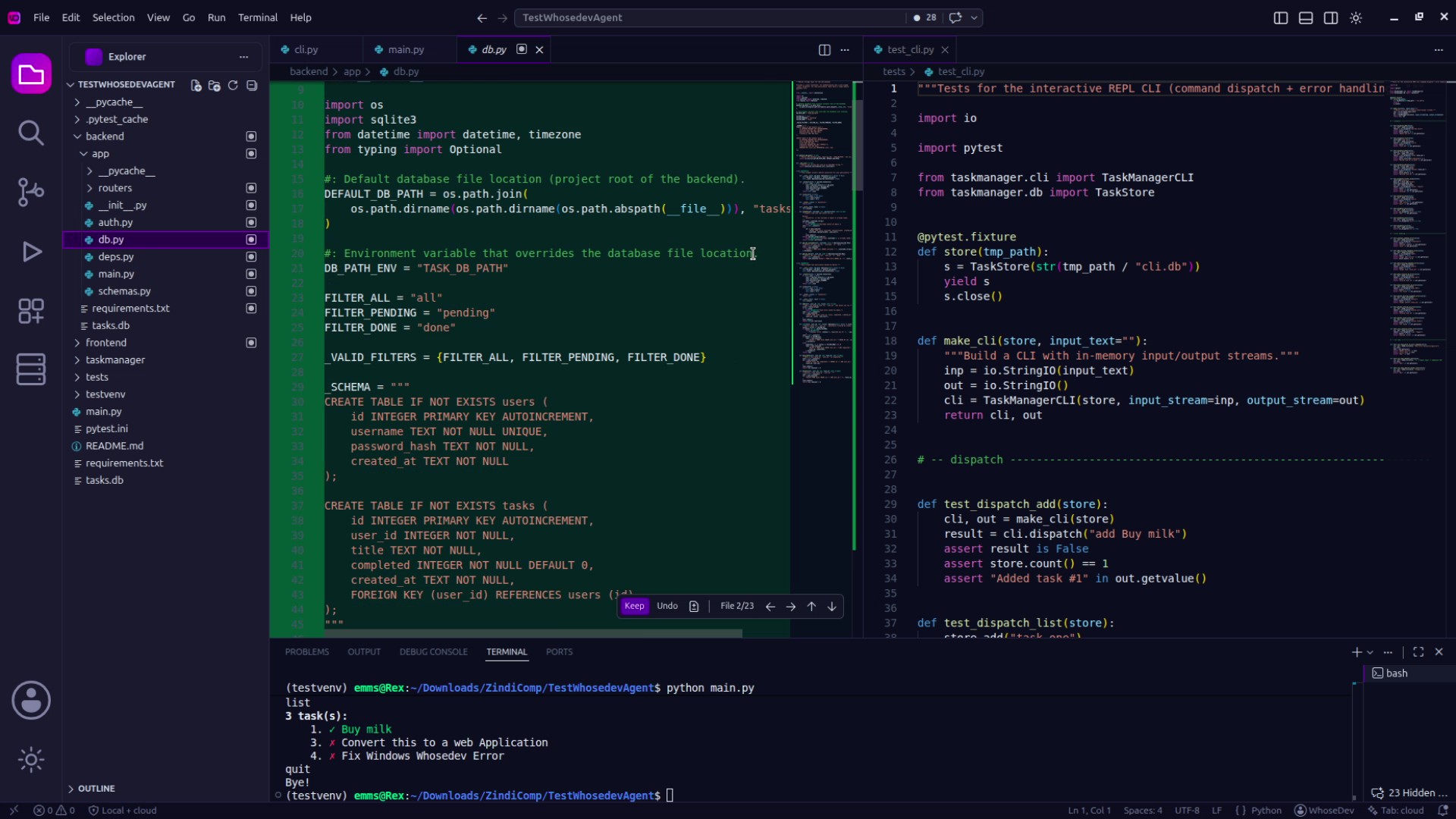
Explore the workspace
Section titled “Explore the workspace”After you open a project folder, start with these areas:
- Explorer: browse and open files.
- Search: find text across the workspace.
- Source Control: review and commit changes.
- Terminal: run project commands without leaving the editor.
- WhoseDev AI: ask questions and work through a task with the assistant.
The folder on disk is not the same as a WhoseDev workspace. After you sign in, the account or organization workspace selects managed models, quota, and Ask/Plan/Act entitlements. See Teams and workspaces.
Initialize WhoseDev project instructions
Section titled “Initialize WhoseDev project instructions”If your project needs reusable AI instructions, open the Command Palette and run WhoseDev: Initialize .whosedev for this Workspace. This creates a .whosedev folder in the workspace for project guidance and related artifacts.
You can also run WhoseDev: Import Existing Instructions to copy supported instruction files, such as AGENTS.md and CLAUDE.md, into the workspace’s WhoseDev rules.
See Set up your WhoseDev project for the full .whosedev layout.
Make a first request
Section titled “Make a first request”- Open a source file.
- Open WhoseDev AI.
- Ask a scoped question such as:
Explain how this file handles errors. - Review the response and its cited files before making changes.
Use Ask, Plan, and Act when you want to choose how much authority the assistant has.