
Troubleshooting WhoseDev AI
I cannot use a managed model
Section titled “I cannot use a managed model”Confirm that you are signed in, have an open workspace, and have an available model in AI Settings. Managed model availability can depend on your plan, quota, and workspace policy.
If the model catalog does not load, retry after checking your connection. You can also use a direct-provider or local model if one is configured.
Ollama is unavailable
Section titled “Ollama is unavailable”Open AI Settings or run WhoseDev: Manage Offline Models.
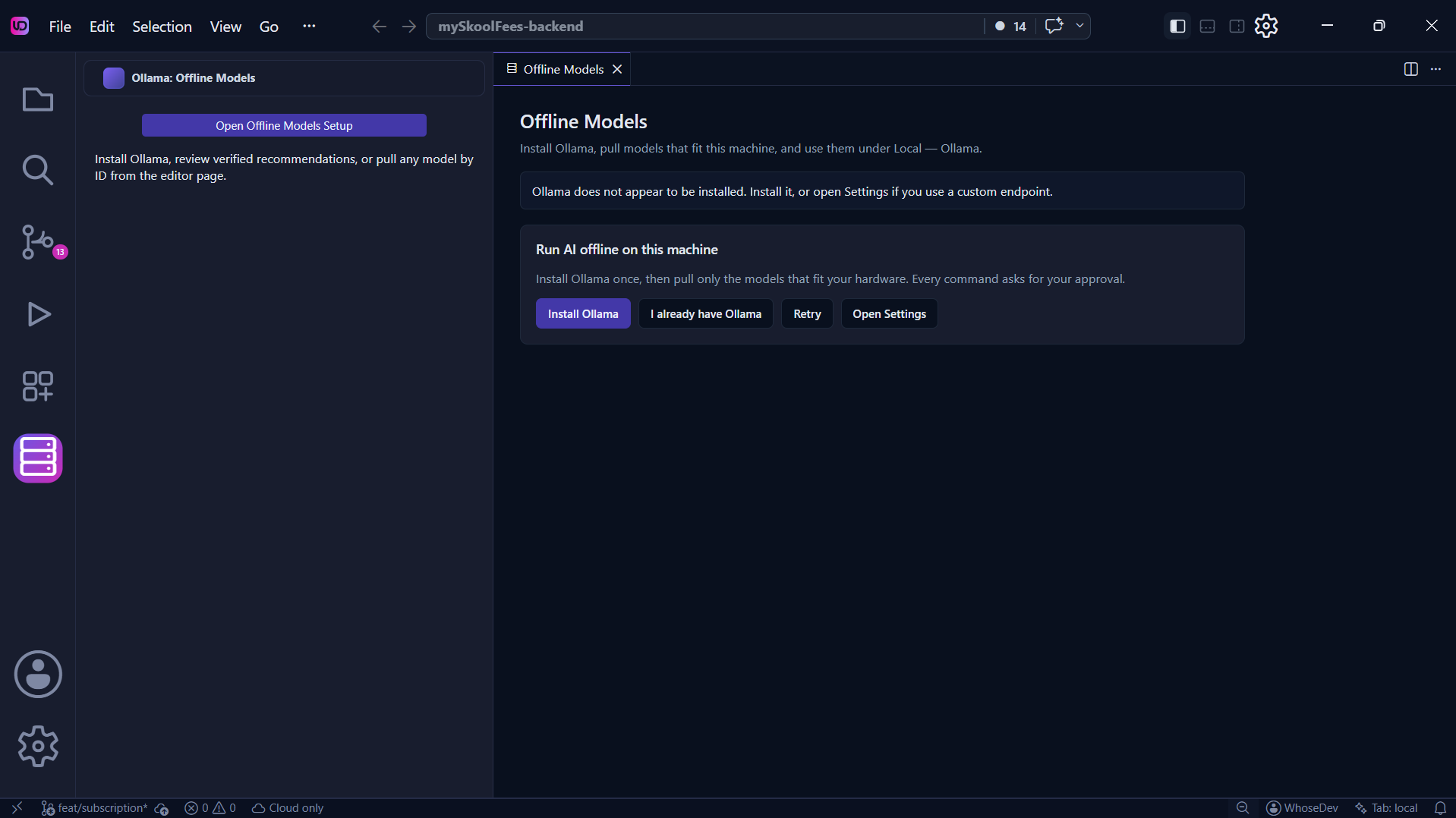
- Confirm that Ollama is installed and running in WhoseDev. The in-app installer does not put
ollamaon your shellPATH. - Confirm that the selected model has been installed locally.
- Check the configured Ollama base URL if you use a non-default local runtime.
- On Linux, if extraction failed, confirm
zstdis installed and retry. - Retry the request after the runtime reports that it is ready.
See Local AI and Offline Models for the managed install location.
I cannot use Plan or Act
Section titled “I cannot use Plan or Act”The composer still shows those modes. On WhoseDev Cloud, the turn can fail if your subscription does not include that mode — switch mode, use BYOK or a Plan-qualified local model, or upgrade. Local Plan also fails if the selected Ollama model did not pass Plan qualification.
Usage remaining looks empty or stale
Section titled “Usage remaining looks empty or stale”Open the account menu → Usage remaining. Missing quota is shown as unavailable, not zero. If the row is stale, use Retry. Confirm you are signed in, a WhoseDev workspace is selected, and the workspace has an active subscription.
A cloud request timed out or stopped
Section titled “A cloud request timed out or stopped”WhoseDev Cloud turns have a time budget that scales with the work (short Ask vs longer Act/plan-build). Long Act sessions can pause if they stop making workspace progress. Inline edit can also time out and, if enabled, fall back to a qualified local model. Retry with a narrower request, or continue from the same conversation.
Masking or privacy notices in chat
Section titled “Masking or privacy notices in chat”A timeline line such as items masked, or Privacy unavailable, refers to WhoseDev Cloud privacy handling for that turn. It does not mean the edit failed. See Privacy and usage.
Inline suggestions do not appear
Section titled “Inline suggestions do not appear”Check that WhoseDev: Inline Completions Enabled is enabled in Settings. Then confirm that the selected route is available:
- For local routing, start Ollama and install the configured local model.
- For cloud routing, sign in and confirm model availability.
- For automatic routing, review whether cloud fallback is allowed when local Ollama is unavailable.
An inline edit is slow or fails
Section titled “An inline edit is slow or fails”Try a smaller selection or a more specific prompt. Local models can be slower on CPU-only machines; WhoseDev may skip a slow local model for inline editing unless you enable the setting that allows it.
If the task needs more context than one selection, use Send to Chat and continue in the chat panel.
Get more help
Section titled “Get more help”Use Help > Report Issue or open the public WhoseDev issue tracker to report a problem. Include the editor version, operating system, route in use, and the steps that reproduce the problem. Never include secrets or sensitive source code in an issue.